 LayerCut
Materials
A material holds every value that depends on the sheet and the machine, so the files you export always match what you're cutting.
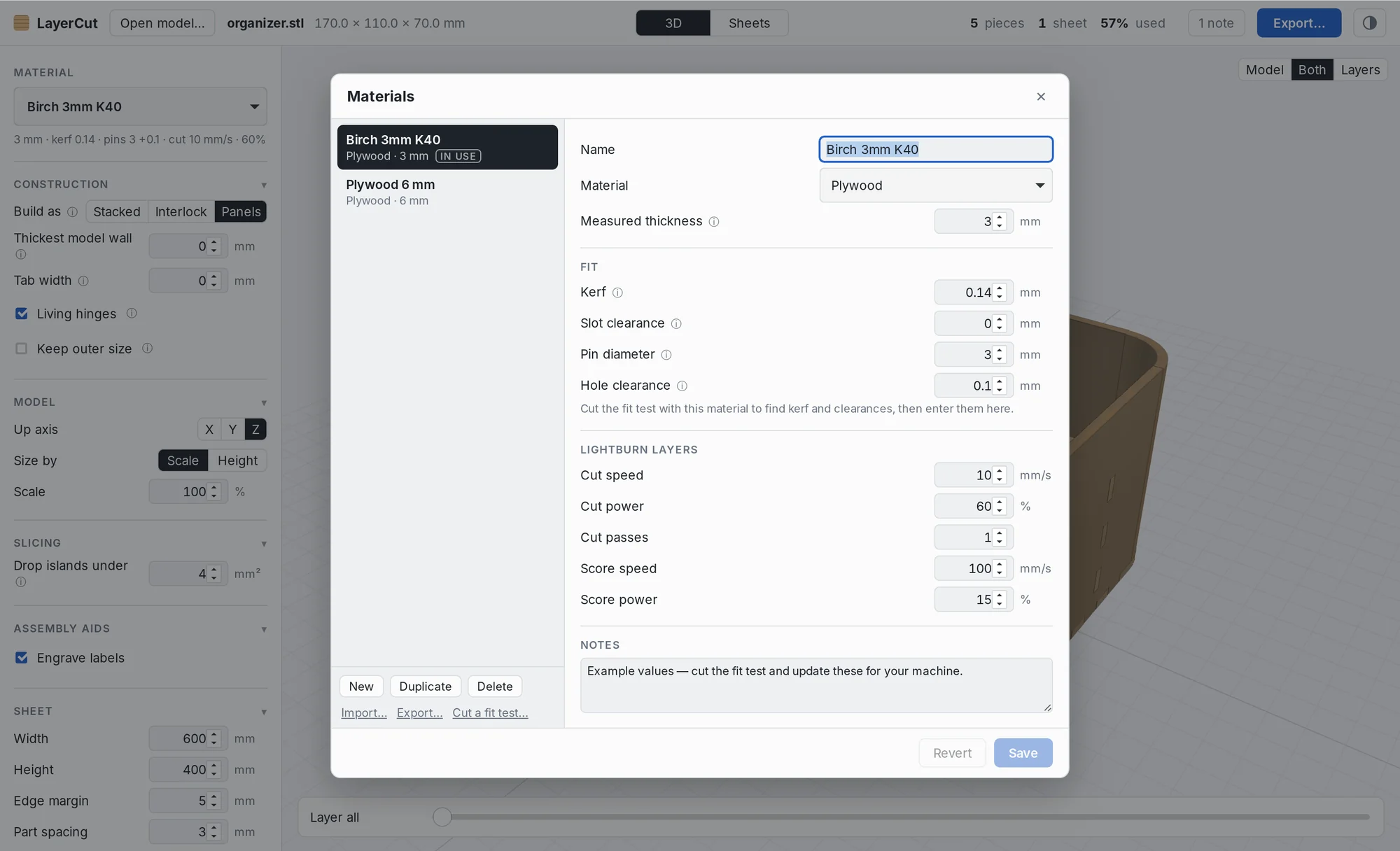
Why materials matter
Plywood sold as “3 mm” is often 2.8 or 3.2 mm, and every laser burns away a slightly different amount. LayerCut keeps these values in a named material, such as “Birch 3 mm on the K40”, rather than in each job. Pick the material, and every slot, pin hole and outline is sized for it.
What a material holds
| Value | What it does |
|---|---|
| Name | How it appears in the material list and in exported file names. |
| Material | The type, such as plywood, MDF or acrylic, for your reference. |
| Measured thickness | The real thickness of your sheet, measured with calipers. Sets the layer height and the slot widths. |
| Kerf | The width of material the laser burns away. Outlines grow and holes shrink by half of it. |
| Slot clearance | Extra width added to interlocking slots and panel slots. Negative values make a tighter fit. |
| Pin diameter | The dowel or pin you'll use for stacked alignment. |
| Hole clearance | Extra size for pin holes. |
| Cut speed, power and passes | Written into the LightBurn cut layer. |
| Score speed and power | Written into the LightBurn engrave layer. |
| Notes | Anything you want to remember: supplier, lens, air assist. |
Use the fit test to find the kerf and clearances, rather than guessing.
Choosing a material
Pick it at the top of the settings, or from the Material menu. The line under the menu sums up its key values, so you can check them at a glance.
Managing materials
Choose Material → Manage Materials… (⇧⌘M). From there you can:
- New creates a material with a suggested name and typical kerf ranges. Material → New Material… (⇧⌘N) does the same.
- Duplicate copies the selected material, for example to make “Birch 3 mm, slow” from “Birch 3 mm”.
- Delete removes a material. You always keep at least one.
- Import… and Export… move materials between computers or share them with a friend.
- Cut a fit test… makes a fit test for the selected material.
Changes are saved when you click Save; Revert throws them away.
Materials are stored on your computer and shared with the command-line tool:
- Mac:
~/Library/Application Support/app.layercut.desktop/profiles.json - Windows:
%APPDATA%\app.layercut.desktop\profiles.json
Measure every new batch of sheets. Thickness can change from one stack of plywood to the next, even from the same supplier.